

Blog
How to Choose the Right USB-C Hub for Your Laptop
Modern laptops are designed to be slim and portable, but that often means having fewer physical ports. If you need to connect an external monitor, keyboard, mouse, USB drive, memory card or other accessory, a USB-C hub can make your setup more convenient.
However, choosing the right laptop multiport adapter involves more than counting its connections. You need to consider the ports you actually use, monitor compatibility, data transfer speeds, charging requirements and your laptop’s specifications.
In this guide, we explain how to choose a USB-C hub for your laptop, what the main specifications mean and which features are worth considering before you buy.
1. What Is a USB-C Hub?
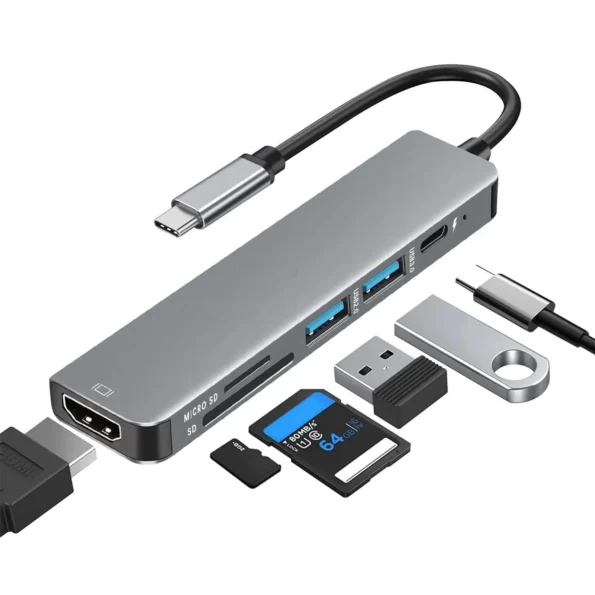
A USB-C hub is an accessory that connects to a compatible USB-C port and provides additional connections for peripherals. Depending on its design, a hub may include USB-A ports, USB-C ports, HDMI, SD and microSD card readers, Ethernet or other connections.
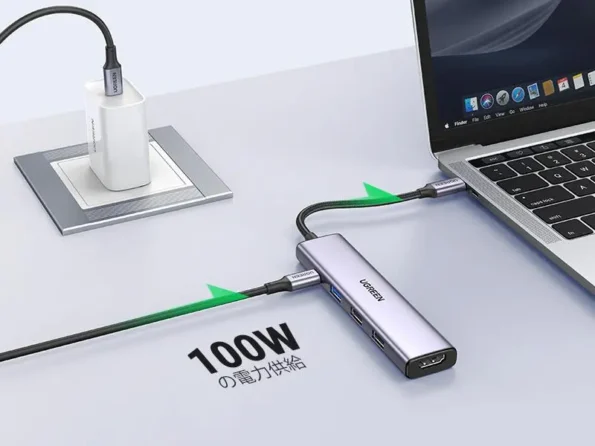
For example, a compatible hub can let you connect a monitor, a USB keyboard and a mouse to a laptop through one connection. Some models also support charging through USB-C Power Delivery, allowing you to connect a suitable charger to the hub.
The exact features vary by model, so always compare the manufacturer’s specifications before choosing a USB-C hub.
2. Check Your Laptop's USB-C Compatibility First
This is one of the most important steps when choosing a USB-C adapter for a laptop.
USB-C describes the connector, not every feature the port supports. Two laptops with USB-C sockets may have different capabilities. One port might support data transfer only, while another may support video output and charging.
Before buying a hub, find your laptop’s exact model number and check the manufacturer’s specifications or support manual.
Confirm the following:
Does the USB-C port support data transfer?
Can it output video to an external monitor?
Does the laptop support charging through that port?
Are there limits on external displays or supported resolutions?
Does the laptop require a particular charging power level?
If you want to connect a monitor through HDMI, the laptop’s USB-C port and the hub must support a compatible video connection. A hub cannot add video output if the laptop’s port does not provide the necessary video signal.
3. Choose the Right Ports for Your Devices
The best USB-C hub is not necessarily the one with the most ports. Choose a model based on the devices you regularly connect.
USB-A ports
USB-A ports are useful for traditional accessories such as wired mice, keyboards, flash drives and some wireless receivers. Check how many ports are available and whether their published data speeds meet your needs.
USB-C ports
USB-C ports can serve different purposes. Some support data, some support charging, and others may support both. Do not assume that every USB-C port on a hub has the same capabilities.
Read the product specifications to distinguish USB-C data ports from a dedicated Power Delivery input.
HDMI output
An HDMI port can connect a compatible laptop setup to an external monitor, television or projector. Check the supported resolution and refresh rate rather than relying on a general claim such as “4K HDMI”.
For example, a hub that supports 4K at 30Hz may not meet the needs of someone who wants 4K at 60Hz. Your laptop, hub, cable and display must all support the intended configuration.
SD and microSD card readers
Card readers are helpful for transferring photos, videos and files from compatible memory cards. They can be useful for photographers, students, content creators and anyone who regularly moves files between devices.
Check which card formats the hub supports and whether its stated transfer speeds suit your workflow.
Ethernet and other connections
Some hubs include Ethernet for a wired network connection, while others offer audio or additional display connections. These features are useful only if you need them and your laptop supports the intended setup.
4. Understand USB-C Hub Data Speeds
Not every USB port transfers data at the same speed. A hub may have several USB-A and USB-C connections with different specifications.
For a keyboard or mouse, basic USB speeds are usually sufficient. If you frequently transfer large video files or work with an external solid-state drive, data speed becomes more important.
Before buying, check:
The advertised USB standard and data rate.
Which specific ports support the faster rate.
Whether the hub shares bandwidth between connected devices.
Whether the laptop’s own port supports the required speed.
A connector’s shape alone does not tell you its maximum data rate. Look for clearly documented specifications instead of assuming that every port is high speed.
5. Check Power Delivery Before Charging Your Laptop
Some USB-C hubs support Power Delivery (PD) pass-through. This allows a compatible charger to connect to the hub so that power can pass through to a laptop while the hub provides its other functions.
However, the wattage listed for a hub’s PD input is not automatically the wattage delivered to your laptop. The hub may use some power itself, and the charger, cable and laptop must support compatible power specifications.
Check these three things:
Laptop requirement: Find the charging power recommended by the laptop manufacturer.
Charger output: Confirm that your charger supports a suitable USB-C Power Delivery profile.
Hub pass through output: Check the power the hub specifies for the connected laptop.
If you only need to connect a mouse, keyboard or flash drive, you may not need a hub with charging pass through. If you want a one cable desk setup, PD support may be useful, provided all the connected equipment is compatible.
6. Consider Your External Monitor Requirements
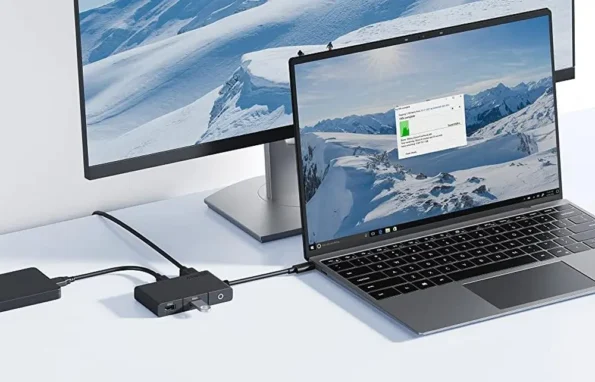
If you use an external monitor for office work, studying, editing or entertainment, check the complete display connection before choosing a hub.
First, confirm that your laptop supports video output through the USB-C port. Next, check the hub’s supported HDMI or DisplayPort modes and compare them with your monitor.
Consider:
The number of monitors you want to connect.
The resolution you need, such as Full HD or 4K.
The refresh rate you want, such as 60Hz.
Whether the laptop supports multiple external displays at once.
Whether the operating system or hub requires additional display software.
A hub with two display sockets does not automatically mean your laptop can run two independent external monitors. Verify the supported configuration for your exact laptop and hub model.
7. Choose a Hub for Your Main Use
Different users need different connections. Use your daily tasks to guide your decision.
For students
A compact hub may be useful for connecting a mouse, flash drive, memory card or compatible classroom display. Portability and a practical port selection are often more important than having many connections.
For home office users
If you regularly work with a monitor, keyboard, mouse and external storage, consider the number of ports, display support and whether charging pass through can simplify your desk.
For photographers and content creators
Look for compatible SD or microSD card readers and suitable data-transfer speeds. If you work with large files, check the speed of the card reader and the ports used for external storage.
For travel
A lightweight, compact hub can be easier to carry than a larger docking station. Consider cable length, port placement, build quality and the connections you are likely to need while away from your desk.
For a permanent workstation
A larger hub or docking station may suit a desk setup with several peripherals. Check power requirements, network connections and the number of displays supported before buying.
8. USB-C Hub vs USB-C Docking Station
A USB-C hub is generally a compact way to add a few connections to a laptop. A docking station is often designed for a more extensive desk setup and may provide additional ports, more display options or its own power supply.
Feature
USB-C Hub
Docking Station
These are general differences, not fixed rules. Some hubs have many connections, while some docking stations are compact. Compare the specifications of the individual models.
9. Common Mistakes to Avoid
Avoid these mistakes when buying a laptop multiport adapter:
Assuming every USB-C port supports video: Confirm the laptop’s specifications first.
Choosing only by port count: Make sure the ports have the features and speeds you need.
Ignoring the monitor refresh rate: Check the exact resolution and refresh-rate combination.
Misreading PD wattage: Distinguish the hub’s input rating from its stated pass-through output.
Forgetting card compatibility: Check the supported SD and microSD formats.
Ignoring simultaneous-use limits: Some hubs have restrictions when several ports or displays are used together.
Buying without checking your laptop model: Similar laptop names can have different port capabilities.
10. A Simple USB-C Hub Buying Checklist
Before placing your order, use this checklist:
I have checked the exact model of my laptop.
The laptop’s USB-C port supports the functions I need.
The hub includes the correct ports for my accessories.
Its display output matches my monitor requirements.
Its data speeds suit my devices.
Its charging support matches my laptop and charger, if required.
Its card reader supports my memory cards, if needed.
Its size and cable design suit my setup.
I have reviewed the specifications for the exact product model.
Taking a few minutes to compare these details can help you avoid compatibility problems and choose a hub that suits your everyday setup.
Where to Find a USB-C Hub for Your Laptop in the UK
If you are looking for a laptop multiport adapter, start by identifying the connections you need and checking your laptop’s specifications.
At i-Tech Groups, you can explore computer accessories and find products for everyday technology setups. Our Type-C 6-in-1 Multifunction Adapter Hub is one option to consider if its listed connections match your requirements. Review its product details and your laptop’s compatibility before ordering.
You can also browse our Computer Accessories collection for more products to support your laptop and desktop setup.
Frequently Asked Questions
Will a USB-C hub work with any laptop?
No. The hub must be compatible with the laptop’s port capabilities and operating system. Check whether your laptop supports the required data, video and charging features.
Can a USB-C hub connect a laptop to an HDMI monitor?
It can when the laptop’s USB-C port supports compatible video output and the hub supports the monitor’s required resolution and refresh rate. Confirm both devices’ specifications before buying.
Can I charge my laptop through a USB-C hub?
Some hubs support USB-C Power Delivery pass-through. Check the hub’s specified output, your charger’s capabilities and your laptop’s charging requirements.
Does a USB-C hub slow down data transfer?
It can, depending on the hub’s specifications, the host connection and how bandwidth is shared between connected devices. Compare the published speeds of the ports you plan to use.
Is a USB-C hub the same as a docking station?
Not exactly. Hubs are commonly compact port expanders, while docking stations often provide more connections for a permanent workstation. Their capabilities vary by model.
How many ports should my USB-C hub have?
Choose enough ports for the devices you use together, such as a monitor, keyboard, mouse, storage drive or memory card. Consider future needs, but do not pay for features you are unlikely to use.
Final Thoughts
Choosing the right USB-C hub starts with your laptop, not the number of ports on the product box. Check the host port’s capabilities, list the devices you need to connect, compare display and data specifications, and verify Power Delivery if you want to charge through the hub.
Once those details match, you can choose a compact adapter for everyday use or a more extensive docking solution for your workstation.
Explore the i-Tech Groups Computer Accessories collection to find products for your setup, and always confirm compatibility before purchasing.